Back to XLongIdea X Recorder
Get the app ↗

Screen · Window · Audio

X Recorder

A focused Windows recorder for lessons, walkthroughs, presentations, and everyday capture—without a complicated production workflow.

Windows 10/11 x64Chinese & English UIFiles saved locally
Ready for full-screen or window capture
X Recorder main interface in English
Mic + system audio controls
Three capture modesFull screen, window, audio only
Flexible audioMicrophone, system sound, separate export
Local workflowNo automatic cloud upload
01 / Workflow

From setup to recording, in one clear flow.

The current 2.0.0.0 interface keeps capture mode, sound, output quality, storage, and start controls in one place.

Choose what matters.

Switch between full-screen recording, a selected application window, or audio-only capture. Name the recording and choose where the finished file should be saved.

  • Full-screen and single-window capture
  • Audio-only mode for voice or system sound
  • Timestamped filenames and selectable save folder
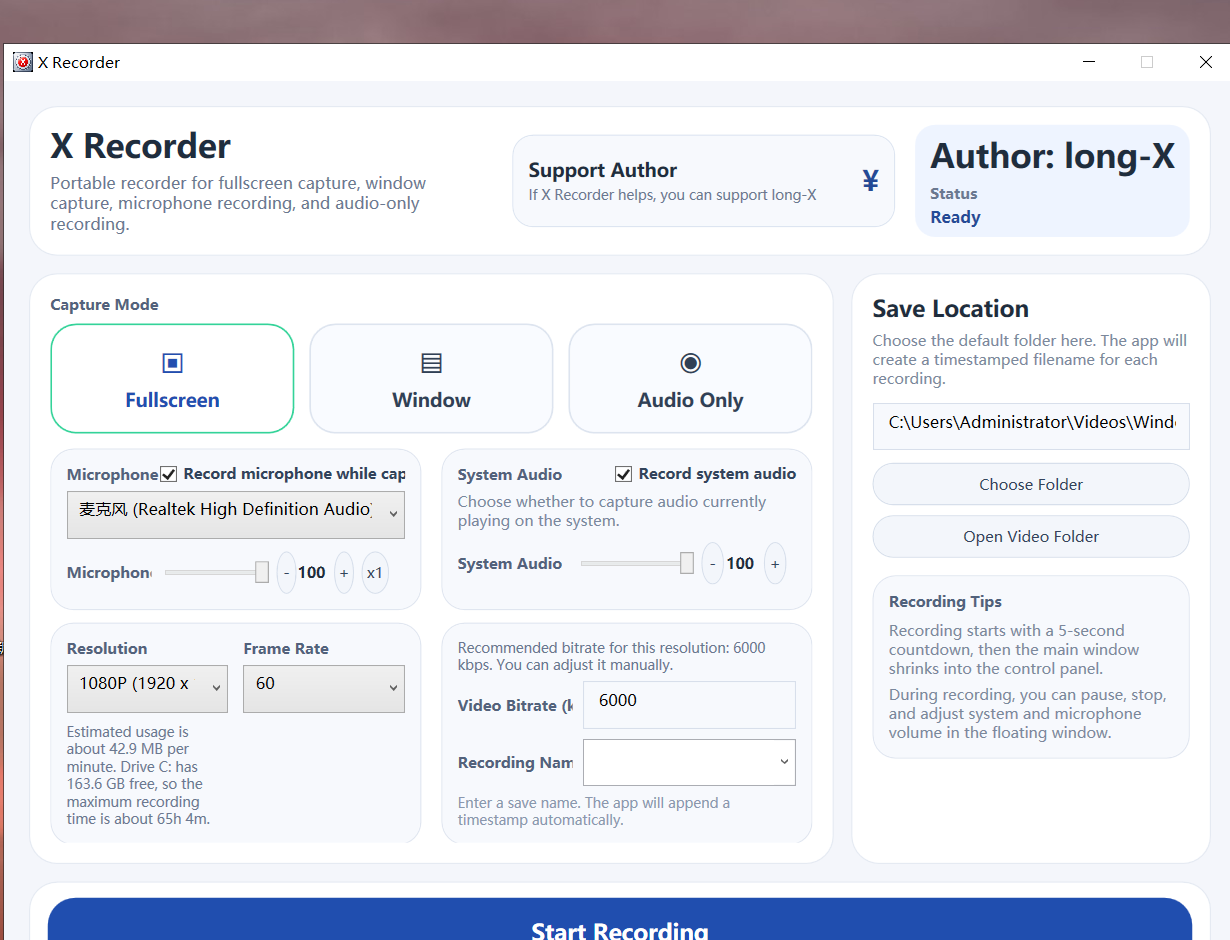
Capture modes and recording settings in X Recorder

Sound you can control.

Record microphone and system audio together, adjust system volume, and optionally export audio separately. The interface also estimates disk usage before you begin.

  • Independent microphone and system-audio controls
  • Volume adjustment and separate audio output
  • Live storage and estimated recording-time guidance
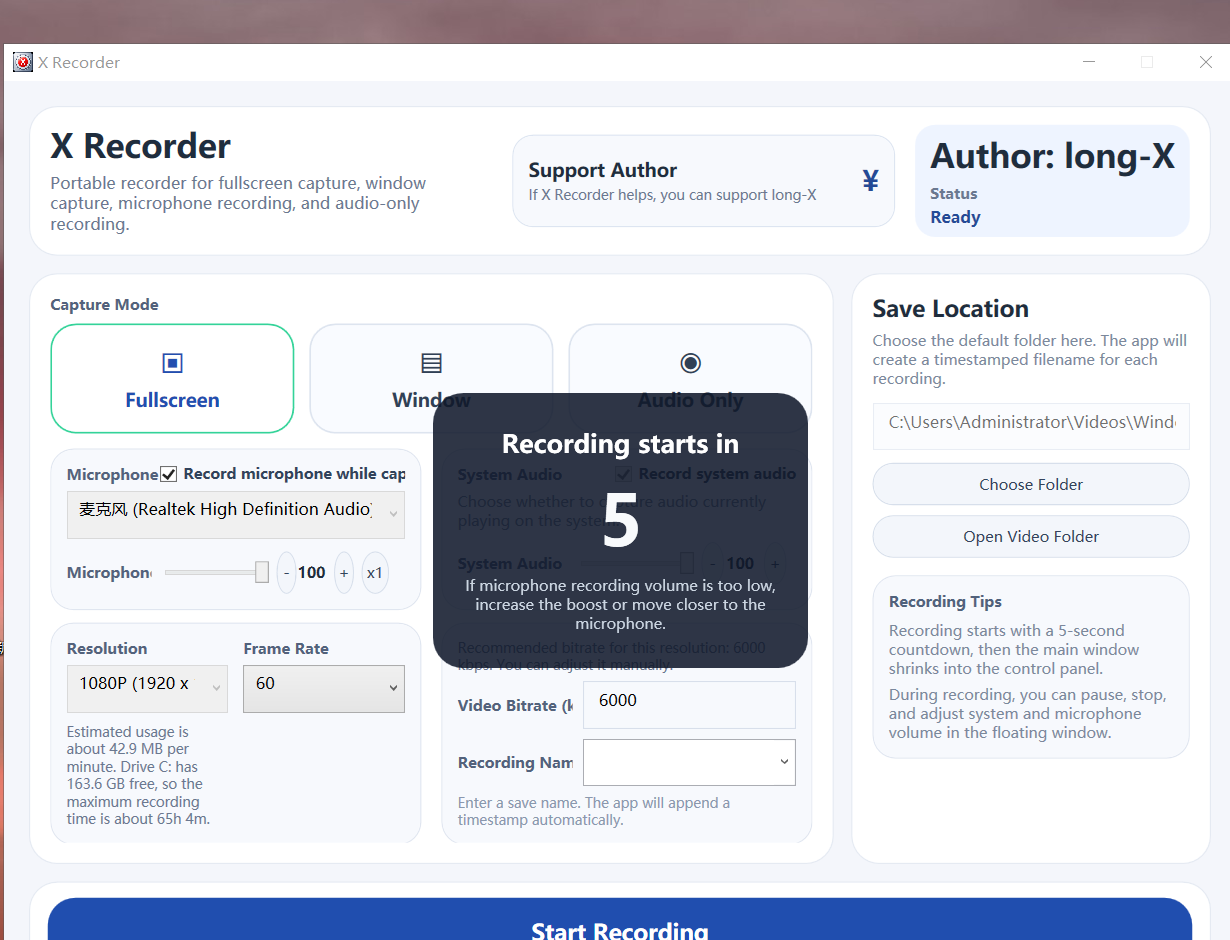
X Recorder countdown before recording
02 / Features

Tools for explaining as you record.

Verified against the current product handoff and the running 2.0.0.0 interface.

01

Quality presets

Choose resolution, frame rate, and bitrate, with a recommended bitrate shown for the current resolution.

02

Segment recording

Split long sessions into timed files while keeping storage estimates visible.

03

On-screen toolbar

Use canvas, pointer highlight, focus, zoom, and screenshot tools while recording.

04

Camera controls

Add a camera preview, reposition it, and use follow-zoom; advanced controls include flip, rotation, scale, and crop.

05

Countdown & control

Start after a 3- or 5-second countdown, then pause, stop, and adjust audio from a compact control panel.

06

Disk protection

Storage is checked before and during recording to reduce the risk of running out of disk space.

Try advanced features before unlocking them.

In the Microsoft Store version, 4K recording, the on-screen toolbar, and advanced camera controls each have their own independent trial allowance. Standard-resolution recording and basic camera positioning remain available without those advanced trials.

Purchase and license restoration are handled through Microsoft Store.

03 / FAQ

Good to know.

Straight answers based on the current Windows build.

Which Windows versions are supported?

The current release targets Windows 10 and Windows 11 on x64 systems.

Where are recordings saved?

You choose the save folder in the application. X Recorder creates a timestamped filename for each recording and does not automatically upload recordings to the cloud.

Can it record system audio and microphone together?

Yes. Both sources can be enabled together, system-audio volume can be adjusted, and audio can optionally be exported separately.

Does it support Chinese and English?

Yes. X Recorder includes both Chinese and English interfaces.

Ready to record?

Open the verified X Recorder listing in Microsoft Store to see the current availability and purchase information for your region.

Open Microsoft Store9N4PCLTR7FJW